Password Managers Compared
Password Managers Compared: LastPass vs KeePass vs Dashlane vs 1Password
There are dozens of password managers out there, but no two are created alike. We’ve rounded up the most popular options and broken down their features so you can pick the right one for you.
What Is a Password Manager and Why Should I Care?
If you’re the tech-savvy sort, there’s a good chance that you already know why you’d want a password manager, and you can skip to the good stuff. But if you’re on the fence (or don’t even know why you should be on the fence in the first place) let us start by saying: installing a password manager is one of the most important things you can do to keep your data safe and secure. It’s not just for security exports and the paranoid: it’s for everyone.
There’s a good chance your passwords aren’t very strong, and an even better chance that you use the same one for many different sites. This is bad, and makes it easier for hackers, phishers, and scammy-types to get at your data. A strong password is long, complex, and different for every site you visit. But in an age when we’re all dealing with dozens (if not hundreds) of passwords, it becomes impossible to remember all those unique passwords.
A good password manager takes the strain off you by helping to generate, manage, and store all those long, complex, and unique passwords better than your brain ever could. Further, unlike just writing everything down in a notebook, a good password manager includes extra features like security assessments, random-character generation, and other tools.
The Many Features of a Good Password Manager
At their most basic, every password manager worth its disk space will generate secure passwords in just a few clicks, and save them all in a database encrypted behind a “master password”. And, if it’s any good, it’ll automatically enter them for you on all your favorite websites so you don’t have to.
Beyond that, though, many passwords add extra features to try and go the extra mile and make your life easier. These features can include, but are not necessarily limited to:
Online and Offline access. There are two primary flavors of password manager: online managers that sync between your computers and other devices, and offline managers that store your password database on your computer (or, in some cases, a USB flash drive). While there is an inherent increased risk any time you store your password online, cloud-based password managers typically store the data as a securely encrypted file that can only be opened on your computer.
Two-Factor Authentication. As we mentioned in our guide to strong passwords, two-factor authentication is crucial for keeping your data safe–which goes double for a service that’s storing all your sensitive passwords! Two-factor authentication uses two factors to verify your identify. One of those is your master password. The other could be a code texted to your phone or a physical USB “key” you plug into the computer to verify that you’re you, and not just someone who learned your master password.
Browser Integration. Ideally, a password manager interfaces with your web browser, the most common place you use passwords, and automatically enters them for you. This is critical. The more seamless and friction-less your password manager experience is, the more likely you are to use it.
Automatic Password Capture. This is a very handy feature tied into browser integration: if you type in a password on a new site, the password manager will prompt you with something like “We see you’ve entered a password on [insert site name], would you like to save it in your database?”. Often, it’ll detect when you change your password, too, and update it in your database accordingly.
Automatic Password Changes. Ever have trouble finding where to change your password on a certain site? Some password managers actually include mechanisms for immediately directing you to the password change page of a given service (or even streamlining the password change right in-app for you). While not a necessary feature, it’s definitely a welcome one.
Automatic Security Alerts. More and more sites are getting breached every year, releasing tons of user passwords to the public. This has prompted many password management companies to include automatic notification (by email, in-app, or both) when a breach occurs on a service you use. These are very helpful for staying on top of necessary password changes.
Portable/Mobile Support. Ideally, your password manager is portable (if it’s a standalone app) and/or has a smartphone and tablet app for managing your passwords on the go (if it is cloud based). Secure smartphone-based password access is beyond handy.
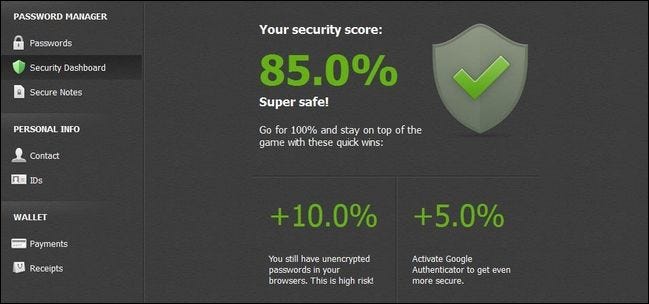
Security Audits. Some password managers have a fantastic feature wherein you can perform an audit on your own password database. It will scan your database and point out when you’re using weak passwords, the same passwords across services, and other password no-nos.
Import/Export. Importing and exporting functions are important password manager components. You want to be able to easily get your existing passwords in (either from another password manager or from the saved passwords in your web browser) and you want a mechanism for easily exporting the password data if need be.
One-Time-Use/Throwaway Passwords. Every password manager has a secure master password that grants you total access to the password management system. Sometimes you may not wish to use that password, however, if you’re not certain of the security of the computer you’re entering it on. Let’s say some pressing emergency compels you to access your password manager on a family member’s computer or a work terminal. A throwaway password system allows you to predesignate one or more passwords to be one-time-use passwords. This way you can log into your password manager once and even if the system on which you do so is compromised that password cannot be used again in the future.
Password Sharing. Some passwords managers include a secure way for you to share passwords with a friend, either inside or outside the framework of that particular password manager.
The Most Popular Password Managers Compared
Now that you have a frame of reference for the important features, let’s take a look at some of the most popular password managers. We’ll discuss them in detail below, but first, here’s a table with an at-a-glance look of each app’s features. In some cases, the answer is more complicated than a simple yes or no and we encourage you to read our more detailed descriptions below where we comment on the nuances of the chart. LastPass, as an example, has a red X for “Offline” because even though it has a backup offline system for access when the Internet is not accessible it is not actually intended to be used that way.
Compare Features
The Best Password Managers

LASTPASS |
KEEPASS |

DASHLANE |
1PASSWORD |
ROBOFORM |
|
| Online | ✓ | ✗ | ✓ | ✗ | ✓ |
| Offline | ✗ | ✓ | ✓ | ✓ | ✓ |
| Two Factor | ✓ | ✓ | ✓ | ✗ | ✓ |
| Browser Integration | ✓ | ✓ | ✓ | ✓ | ✓ |
| Password Capture | ✓ | ✗ | ✓ | ✗ | ✓ |
| Password Changes | ✓ | ✗ | ✓ | ✗ | ✓ |
| Security Alerts | ✓ | ✗ | ✓ | ✓ | ✗ |
| Portable Application | ✗ | ✓ | ✗ | ✗ | ✓ |
| Mobile Application | ✓ | ✗ | ✓ | ✓ | ✓ |
| Security Audits | ✓ | ✗ | ✓ | ✓ | ✗ |
| Import | ✓ | ✓ | ✓ | ✓ | ✓ |
| Export | ✓ | ✓ | ✓ | ✓ | ✓ |
| Throwaway Passwords | ✓ | ✗ | ✓ | ✓ | ✓ |
| Password Sharing | ✓ | ✓ | ✓ | ✓ | ✓ |
Have a few questions about the yes, no, and asterisked entries in the table above? Let’s look at each individual service now.
LastPass is one of the most widely known and widely used password managers on the planet. While many of LastPass’ features can be found in other password managers, the service was either at the forefront of pioneering certain features (or significantly improved them). The LastPass security audit, for example, is a top notch experience that really makes it easy to both test the quality of your passwords as well as make changes to improve them.
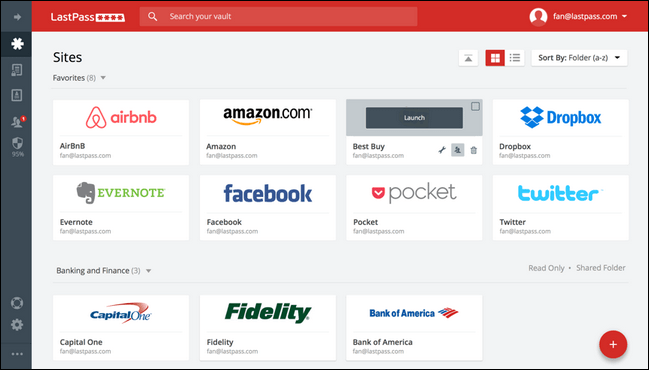
LastPass is primarily a browser extension, though it has standalone apps for Windows and Mac OS X as well. In the above chart LastPass is flagged in the Offline category with an asterisk because while it’s technically an online password management system, it does work offline in certain instances. The actual password database is securely transferred to your device and decrypted there (and not in the cloud) so you can access the database without an active internet connection through your web browser, via the Mac app, or on your mobile device as long as you’ve logged into the cloud once in order to grab the database.
LastPass is free to use on desktop and mobile, though they also have a very reasonable premium model at a mere $12 a year. A buck a month for advanced features is a bargain, even though you can get by without it. You can compare the free and premium features here. (Update: LastPass now costs $36 per year.)
LastPass’ popularity hinges on how easy it is to use, how many features it has for free users, and the fact that it supports iOS, Android, Windows Phones, and even BlackBerry devices. Between the excellent browser integration and the great mobile apps, LastPass really lowers the friction between the end user and good password management.
If you bring up popular cloud-based password managers in conversation (especially among tech types) there is bound to be at least one (or several) people who chime in with “There is no way I’d put my passwords in the cloud.” Those people use KeePass.
ADVERTISEMENT
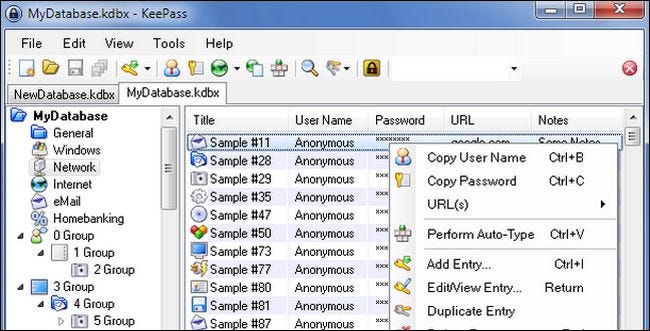
KeePass is, rightfully so, a long-standing favorite among people who want a solid password manager but don’t want to take on the risks (however well-managed and small they might be) of putting their password data in the cloud. Furthermore, KeePass is fully open source, portable, and extensible. (Seriously, the extensions page shows how easy it is for people to make extensions that do everything from improve the KeePass interface to sync the password database to Dropbox.)
Speaking of which, KeePass is technically an offline password manager, but its database can be synced between computers with a service like Dropbox. Of course, at that point, you’re putting your passwords back in the cloud, which invalidates KeePass’ biggest advantage, but it’s there if you want it.
KeePass is the best password manager for the DIYer who is willing to trade the convenience of cloud-based systems like LastPass for total control over (and customization of) their password system. Like an early Linux enthusiast, though, it also means you’re left patching together the system you want on your own terms (there are no official mobile apps, for example, but developers have taken the open source code and adopted it for various platforms). There’s no click, setup, and done with the KeePass system.
Like LastPass, Dashlane has a slick Web 2.0-type interface with a host of similar features–like syncing, password auditing, assisted automatic password changes, and alerts in case of security breaches. Dashlane, however, definitely led the pack in the good interface department–for years, LastPass had a functional but very dated looking interface. Dashlane was the far more polished app, until late 2015 when LastPass finally updated its interface.
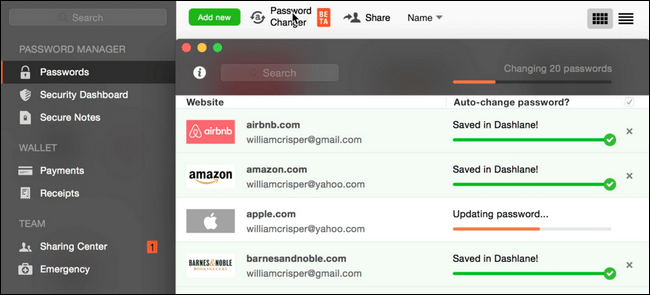
The big difference between the two is the cost of the premium access. Veteran Dashlane users got grandfathered in years ago, but newer users are in for a bit of a sticker shock. To get the same premium upgrades that come with LastPass you’ll have to shell out $50 a year (instead of $36). One of those make-or-break features is online syncing, available only to Dashlane premium members.
ADVERTISEMENT
On the upside Dashlane has something LastPass doesn’t: a hybridization of online/offline functionality. Dashlane is, first and foremost, a local app, and you even get the option when you first set it up to use (or ignore) the online functionality altogether.
If you want the LastPass experience but you like the whole offline aspect of KeePass, Dashlane is a very polished compromise that allows you to start off with local passwords and very easily upgrade to a fully synced and online experience if you desire.
1Password was originally a premium app for Macs only. However, despite its origins, it now has a Windows app as well as iOS and Android companions. One thing that throws first time shoppers off is the price: Desktop versions of the app are trial only (albeit after the first 30 days the trial is indefinite with limited features) and the mobile versions are free (again with limited functionality). The desktop apps will set you back $49.99 each or you can bundle them for $69.99. The iOS app is $9.99 premium upgrade and the Android app is a $7.99 premium upgrade. (Update: 1Password is now primarily a subscription service, costing $36 per year for one person or $60 per year for a family of up to five people.)
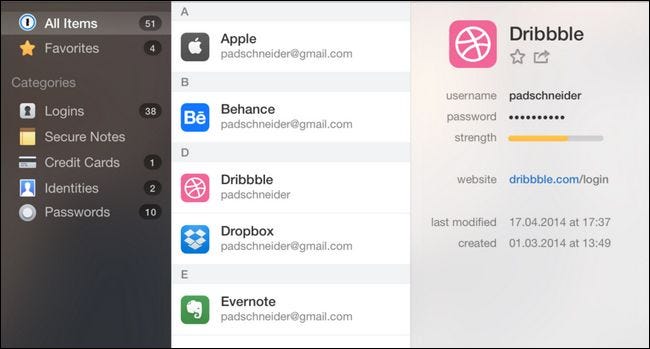
All that said, there is no subscription model for 1Password. So while a desktop and mobile license will set you back around $60 out of the gate, it will be cheaper than a LastPass or Dashlane over time. If you have multiple users in your house, it comes out to be a lot cheaper, since licenses can be shared with up to 6 people living in the same household). The 1Password developers even have a really handy wizard in their store that will guide you through a few simple questions to help you pick out exactly which products you should buy based on your needs.
Like KeePass, 1Password is primarily an offline desktop password manager, but you can manually sync your passwords to your smartphones over USB or Wi-Fi like you would music, or over the internet with a service like Dropbox or iCloud.
In addition to easy syncing and (if you want it) cloud storage via Dropbox or iCloud, 1Password also features very polished browser integration. If you want the offline passwords with a more polished user experience than you’ll get from most other offline managers, 1Password is a solid choice with deceptively competitive pricing.
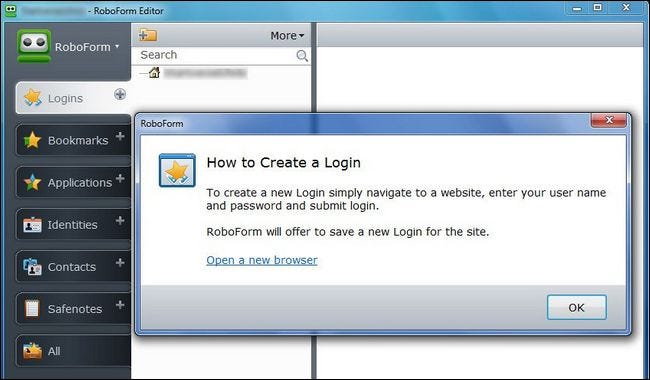
We’ll be the first to admit that RoboForm is a bit of an enigma to us. It isn’t the most feature packed app, and it isn’t the cheapest. But despite more-or-less failing to keep up with the major trends in password management over the last five years, it still has a very large and loyal fan base. Part of this is due to the fact that RoboForm is one of the oldest still-operating password managers out there: it debuted in 1999 and some people have been using it ever since.